
Stock Management Dashboard
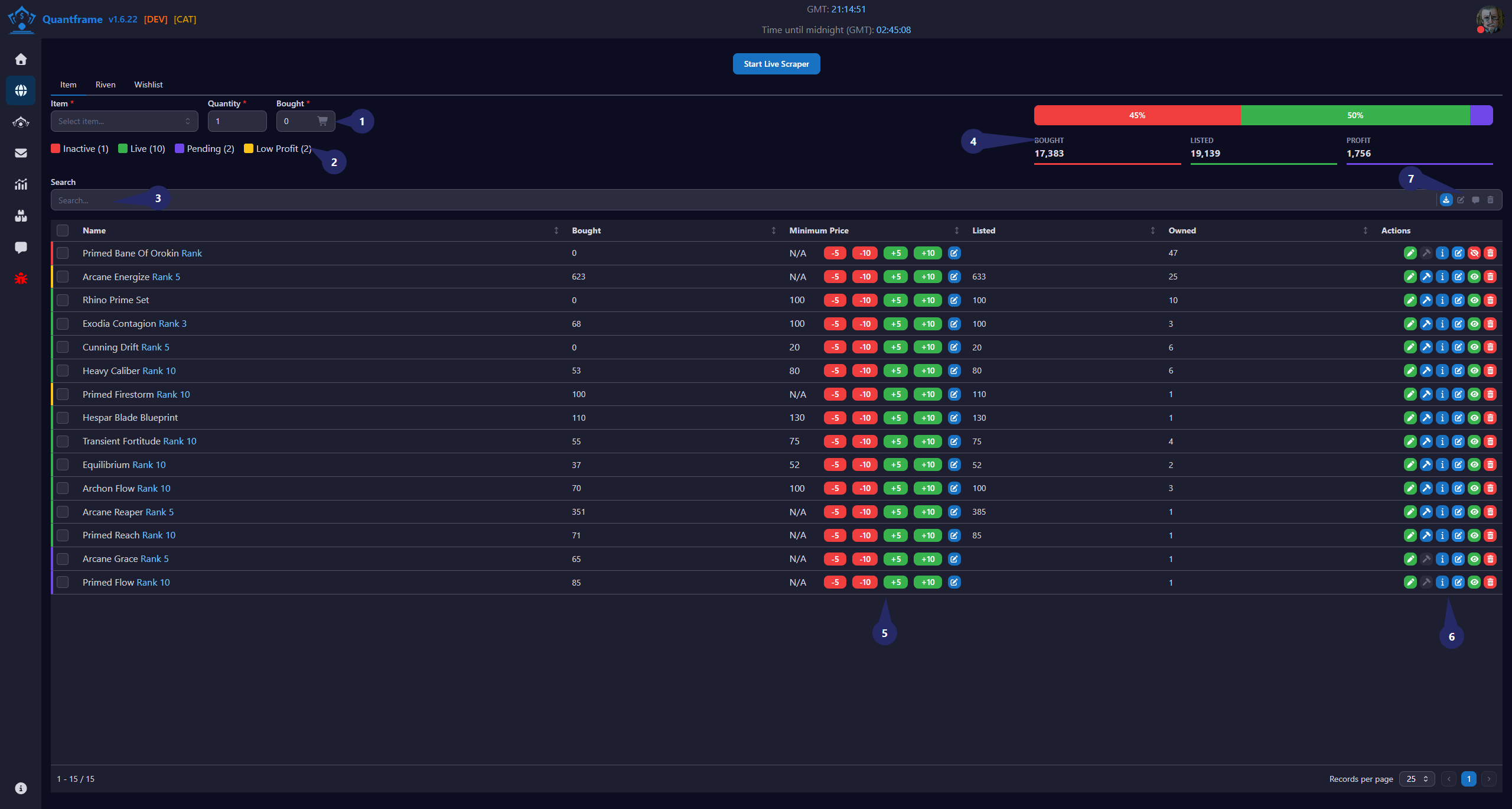
Stock items are the items you currently hold in your inventory that are available for trading. QuantFrame makes it easy to manage your stock and decide which items to sell.
1. Add New Item Section
This section is used to add an item to the stock tracking system.
Fields
- Item: Select an item from the dropdown list.
- Quantity: Enter the quantity to be added.
- Bought: Enter the purchase price/value.
- Add Button (+): Saves the item to the tracking list.
2. Status Indicators
| Status | Color | Description |
|---|---|---|
| Pending | Item is queued and waiting to be processed. | |
| Live | Item is actively listed and trading on the market. | |
| Low Profit | Profit margin is below the configured threshold — consider adjusting price. | |
| No Sellers | No sellers currently listed on the market for this item. | |
| No Buyers | No buy orders currently available on the market for this item. | |
| Inactive | Item is inactive and not being traded. | |
| SMA Limit | Simple Moving Average limit has been reached — item is outside the configured SMA range. | |
| Order Limit | Maximum order limit has been reached for this item, limit is set by Warframe Market Patreon. | |
| Overpriced | Item is priced above the current market average — may not sell quickly. | |
| Underpriced | Item is priced below the current market average — potential profit opportunity. |
3. Search & Filter Section
Use this area to quickly find items in the table.
Features
- Search by item name.
- Filter displayed records.
- View current stock entries.
- Supports fast navigation through large inventories.
4. Dashboard Statistics
Provides an overview of trading performance.
Metrics
| Metric | Description |
|---|---|
| Bought | Total items purchased |
| Listed | Total items currently listed |
| Profit | Current profit amount |
Progress Bar
Displays the percentage distribution between:
- Bought items
- Listed items
- Profit performance
5. Price Management Controls
Allows quick adjustment of minimum listing prices.
Actions
- -5: Decrease minimum price by 5
- -10: Decrease minimum price by 10
- +5: Increase minimum price by 5
- +10: Increase minimum price by 10
- Edit Icon: Manually set a custom minimum price
Purpose
Used to quickly react to market changes and optimize item pricing.
6. Item Action Controls
Available actions for each item record.
Actions
| Icon | Function | Description |
|---|---|---|
| Sell Manually | Sell the item manually at a custom price | |
| Sell as listed | Sell the item at the listed price | |
| View details | View detailed information about the item | |
| Edit item | Edit the details of the selected item | |
| / | Show/Hide | Show or hide the item in the inventory and on the market |
| Delete item | Delete the item from the inventory and the market |
7. Search Button's
Available batch actions for all items in the table.
Actions
| Icon | Function | Description | Requires Patreon |
|---|---|---|---|
| Export JSON | Export items to JSON | ||
| Update Multiple | Update multiple items at once | ||
| Delete Multiple | Delete multiple items at once | ||
| Generate WTS Message | Generate a WTS (Want to Sell) message |
Usage
Manage individual stock entries directly from the table without opening additional pages.
Workflow
- Select an item and enter quantity/purchase data.
- Click the Add (+) button.
- Monitor overall statistics in the dashboard summary.
- Adjust minimum prices using quick pricing controls.
- Manage individual listings using the action buttons.